NCIRF 4 User Manual
Exposure geometry, phantom configuration, Monte Carlo calculation, batch processing, and output guidance for NCIRF 4.
NCIRF 4
NCI Dosimetry System for Radiography and Fluoroscopy
Current documented release: September 10, 2026 Current release type: Scientific Update Latest scientific update: September 10, 2026
Introduction
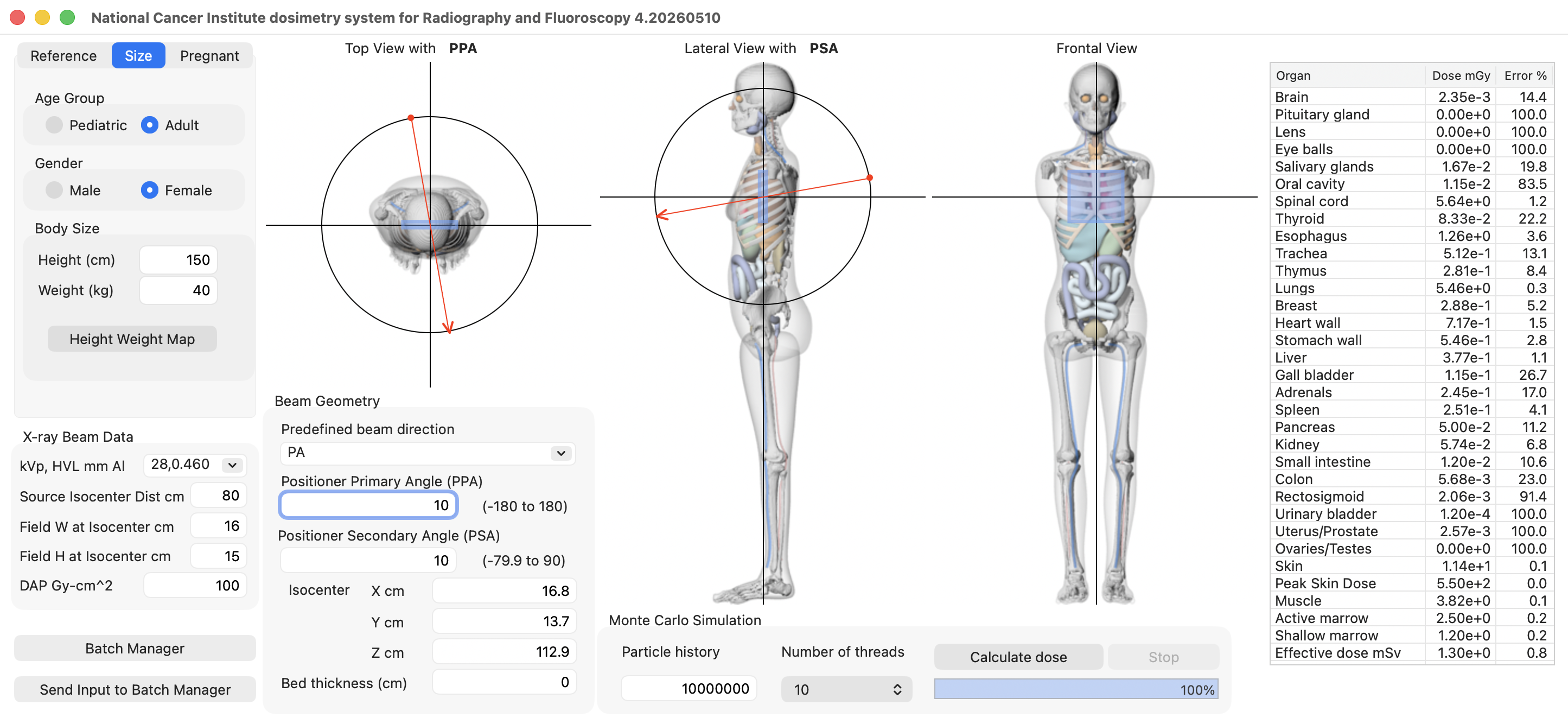
The National Cancer Institute Dosimetry System for Radiography and Fluoroscopy (NCIRF) is a reference radiation dose estimation system developed by the National Cancer Institute (NCI) for estimating organ absorbed doses and effective dose associated with diagnostic radiography, fluoroscopy, and fluoroscopically guided interventional procedures.
NCIRF integrates computational human phantoms with a streamlined GEANT4 Monte Carlo radiation transport engine. Unlike NCICT and NCINM, which rely on pre-calculated dose conversion coefficients, NCIRF performs direct Monte Carlo radiation transport simulations based on user-specified imaging and geometric parameters.
NCIRF supports population-based dose evaluation, benchmarking, and retrospective dose reconstruction. It is not intended for real-time clinical decision support or site-specific clinical optimization.
Calculation Workflow
| Step | Description |
|---|---|
| 1 | Select the phantom library and patient characteristics |
| 2 | Define x-ray beam spectrum and dose quantity |
| 3 | Specify beam geometry, isocenter, and table thickness |
| 4 | Run GEANT4 Monte Carlo simulations |
| 5 | Review organ dose, error, PSD, and effective dose |
| 6 | Optionally run multiple cases through Batch Manager |
Numeric fields accept either dot or comma decimal notation regardless of the operating-system regional setting.
1. Patient Characteristics
NCIRF 4 supports three phantom library categories:
- Reference phantoms
- Size-dependent phantoms
- Pregnant phantoms
Reference Phantoms
Reference phantoms are available in three arm/posture libraries:
- Arm raised reference phantom
- Arm lowered reference phantom
- Arm rotated reference phantom
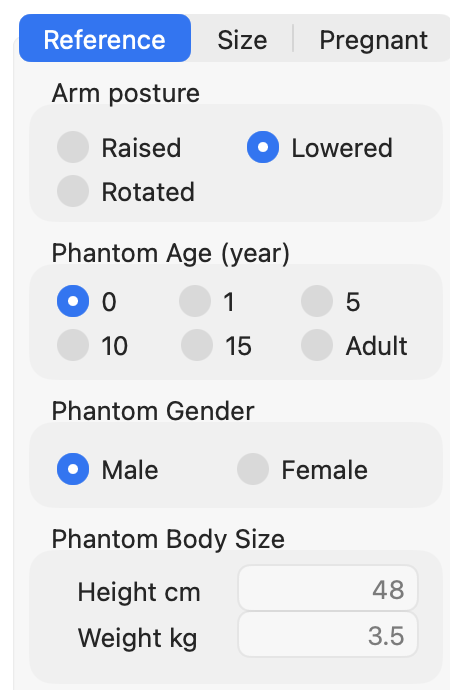
Users select the reference phantom by choosing:
- Arm posture
- Age group
- Sex
Reference height and weight are displayed automatically and are not editable. For ages that fall between reference groups, users may select the nearest reference age group or perform external interpolation as needed.
Size-Dependent Phantoms
The size-dependent phantom library contains 362 phantoms:
- Pediatric female
- Pediatric male
- Adult female
- Adult male
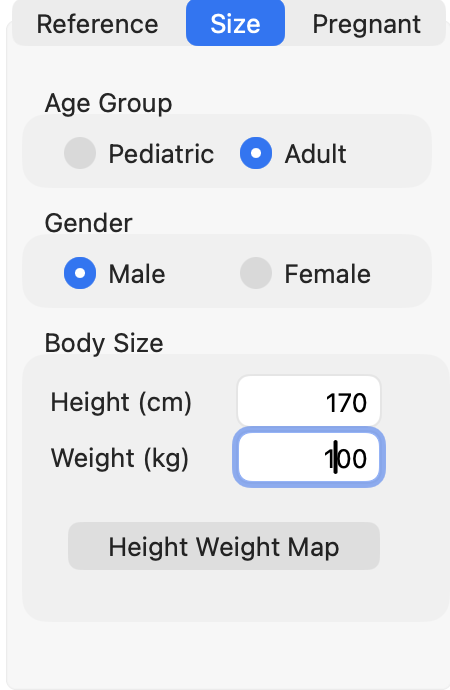
Users select size-dependent phantoms by entering or adjusting:
- Age group
- Sex
- Height (cm)
- Weight (kg)
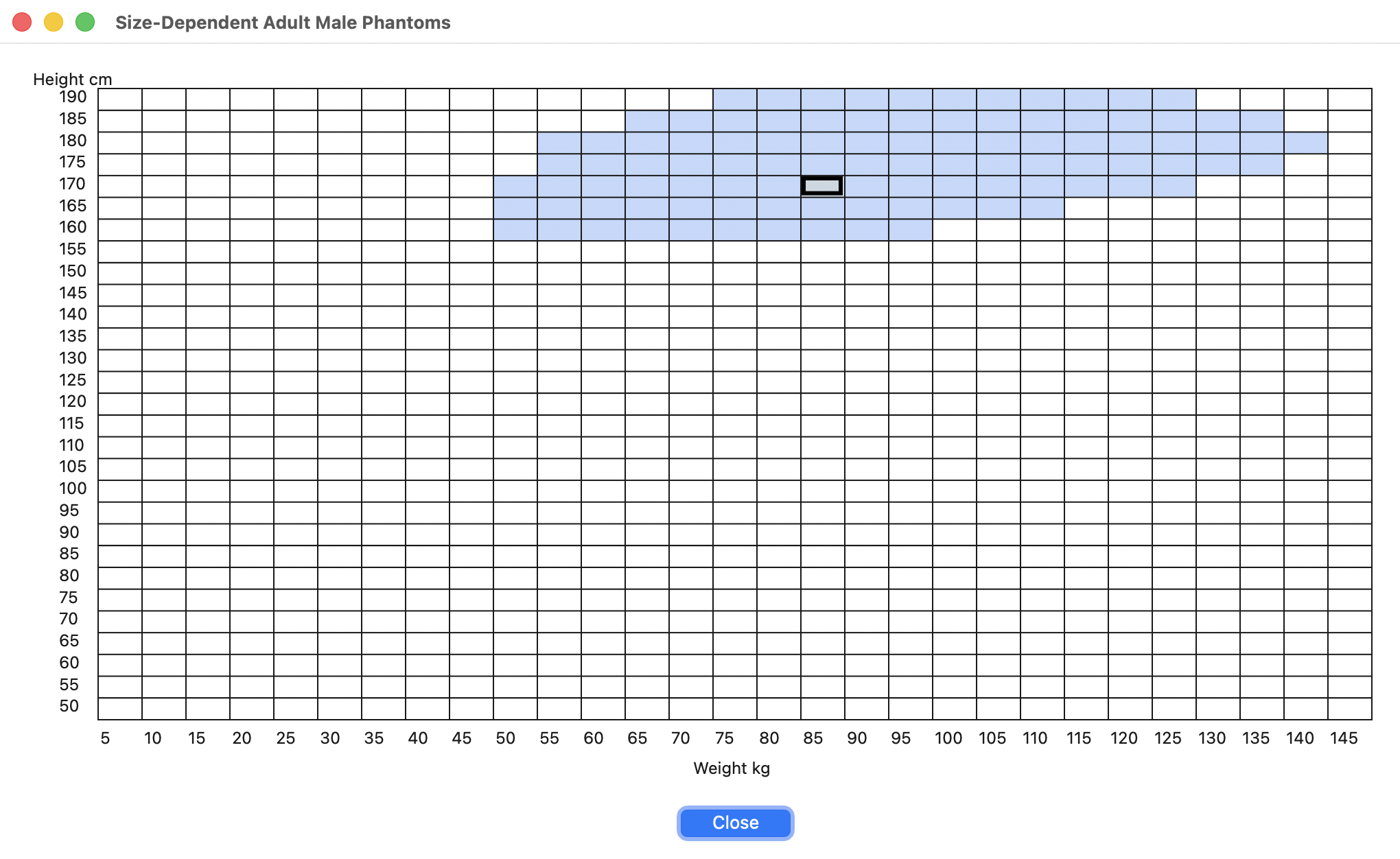
NCIRF 4 automatically matches the entered height and weight to the nearest available phantom grid point. Height and weight bins can be adjusted with the cursor up/down keys. Users may also select a phantom by clicking an available cell in the height-weight phantom map.
The height-weight phantom map displays available size-dependent phantoms as blue cells and highlights the currently selected phantom cell. Clicking an available cell updates the height and weight fields and refreshes the phantom views. Cells without an available phantom are ignored.
Selection of the correct pediatric/adult and sex group is important for active and shallow marrow dose calculations, because those calculations use age-dependent dose response functions.
Fetus Tab (Pregnant Phantoms)
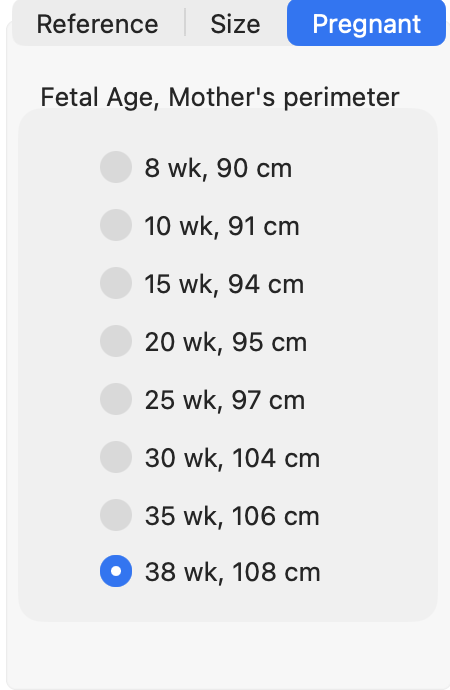
Select the Fetus tab to use pregnant phantoms by gestational age. Available fetal ages are:
- 8wk
- 10wk
- 15wk
- 20wk
- 25wk
- 30wk
- 35wk
- 38wk
These phantoms include detailed fetal models for gestational-age dose evaluation.
When using the Fetus tab, height and weight are not used. The first column of the organ-dose output table is labeled Fetal Organ.
2. X-ray Beam Data
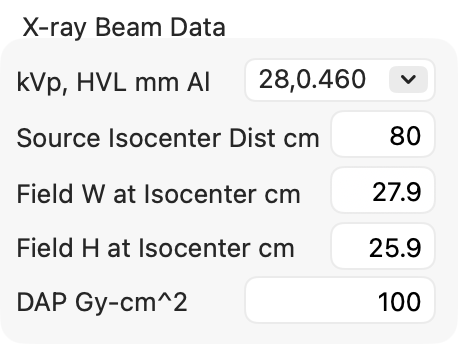
Users define the x-ray beam spectrum by selecting a kVp and half-value layer (HVL) combination. NCIRF 4 provides 114 predefined spectra and supports custom spectrum generation and import.
The controls beside the spectrum selector are:
- + — generate a custom spectrum with SpekPy.
- − — remove the selected custom spectrum. Built-in spectra cannot be removed; after removal, NCIRF selects the preceding spectrum.
- Import — import a portable NCIRF
.ncirfspcfile or a legacy NCIRF.spcJSON file.
Custom spectra use the same Monte Carlo source definition and DAP
normalization workflow as the built-in spectra. On both macOS and Windows,
the compact selector shows kVp,HVL and marks custom entries with a trailing
asterisk, for example 80,5.308 *. Built-in entries have no asterisk. The
selector tooltip explains * Custom spectrum. When a custom spectrum is
selected, its user-defined name is still shown separately in blue above the
selector.
Generating a Custom Spectrum with SpekPy
NCIRF uses the NCI-hosted SpekPy service to generate a new spectrum. SpekPy's approximately 396 MiB Python environment is not bundled with the desktop application. Internet access is therefore required while generating a new spectrum, but not when using built-in spectra or a custom spectrum that has already been added or imported.
The custom-spectrum window accepts:
- A unique spectrum name containing 1-20 characters.
- A target and target-supported tube potential:
- W: 20-125 kVp with
spekcalc,casim, orspekpy-v1. - Mo or Rh: 20-50 kVp with
casim.
- W: 20-125 kVp with
- Anode angle.
- Zero or more filtration rows applied in the displayed order.
- Optional target HVL in mm Al.
The filtration menu provides Al, Cu, Sn, Be, Air, Mo, Rh, Ag, Ti, Er, Gd, and Pb. W starts at 80 kVp with Al 2.5 mm and Cu 0.1 mm. Mo starts at 28 kVp with Mo 0.03 mm, and Rh starts at 30 kVp with Rh 0.025 mm. Target changes reset the target-dependent defaults so that a result cannot accidentally be saved under settings from another target.
Select Generate to request and preview a spectrum. NCIRF validates the service version, supported settings, and returned energy grid before enabling the add/save actions. The preview shows normalized spectrum intensity. Blue status messages at the bottom identify invalid names or parameters, duplicate names, service errors, and returned warnings.
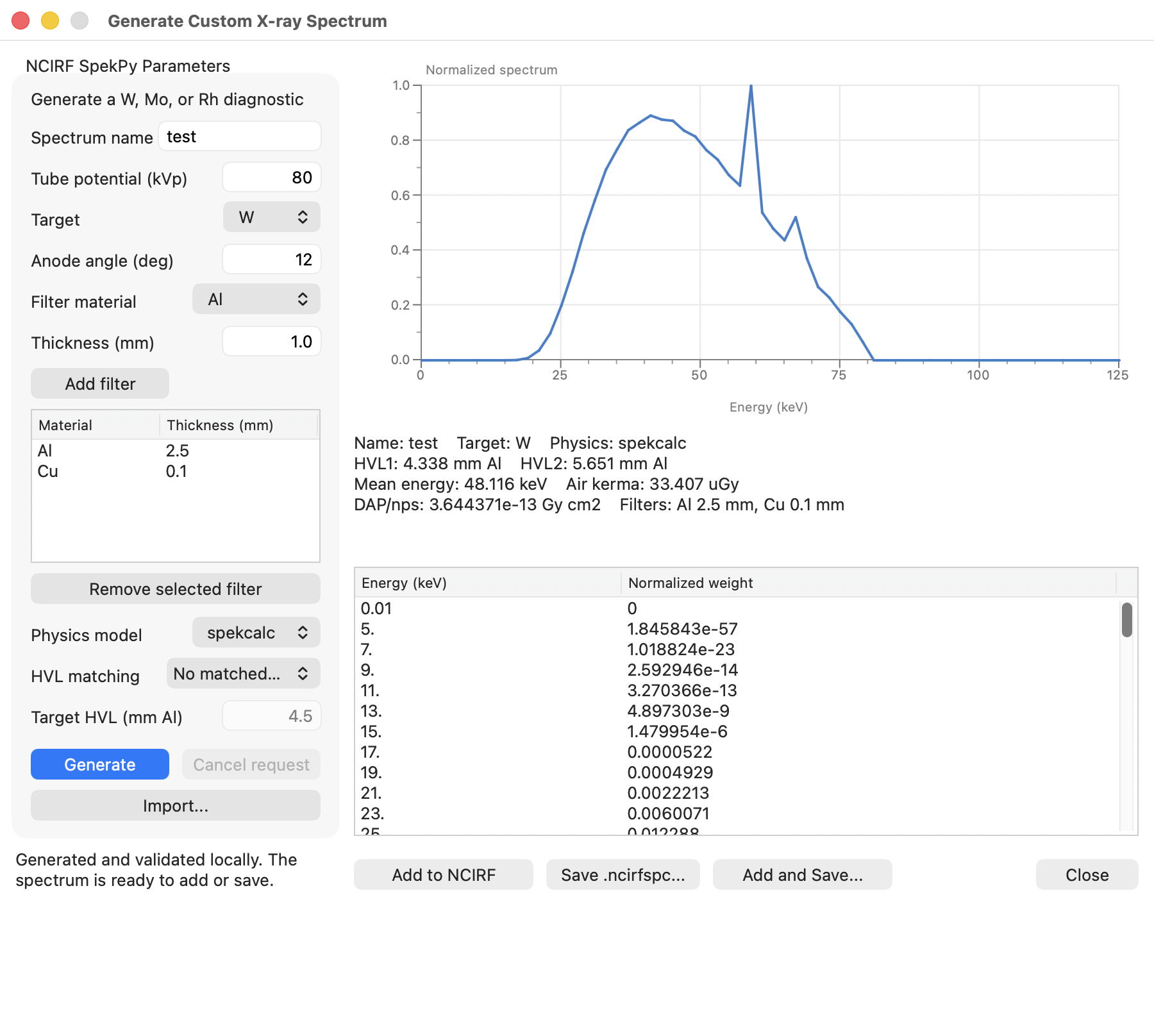
Generated spectra are normalized onto NCIRF's fixed 62-value energy grid for
dose calculation. The desktop application and .ncirfspc format do not export
the full raw SpekPyWeb fluence table. This interface is an NCIRF-focused subset
of SpekPyWeb and does not expose all SpekPyWeb research options or materials.
Adding, Saving, and Reusing Custom Spectra
- Add adds the generated spectrum to NCIRF and selects it.
- Save writes a portable UTF-8 NCIRF-SPC JSON file using the
.ncirfspcextension. - Add and Save performs both operations.
Every added spectrum is also stored automatically in the user's NCIRF
Application Data folder and is restored at the next application launch. A
portable .ncirfspc file can be shared, archived, or referenced from a Batch
CSV file. Import also accepts legacy NCIRF .spc JSON files; unrelated
standard or binary SPC formats are not supported. Once a spectrum has been
added or imported, it can be used offline even if the hosted service is
unavailable.
To recreate the validated Lumos reference spectra, select W and casim, set a
12-degree anode angle, remove the default filters, add only Al 1.7 mm, leave
HVL matching off, and generate at 60, 65, or 70 kVp. Use a unique name such as
Lumos 60, Lumos 65, or Lumos 70.
Additional beam parameters include:
- Source-to-isocenter distance (SID, cm)
- Field width at isocenter (FW, cm)
- Field height at isocenter (FH, cm)
- Dose-area product (DAP, Gy-cm2)
DAP is required to scale Monte Carlo output to absolute absorbed organ dose. NCIRF 4 automatically selects the appropriate dose response function (DRF).
3. Beam Geometry
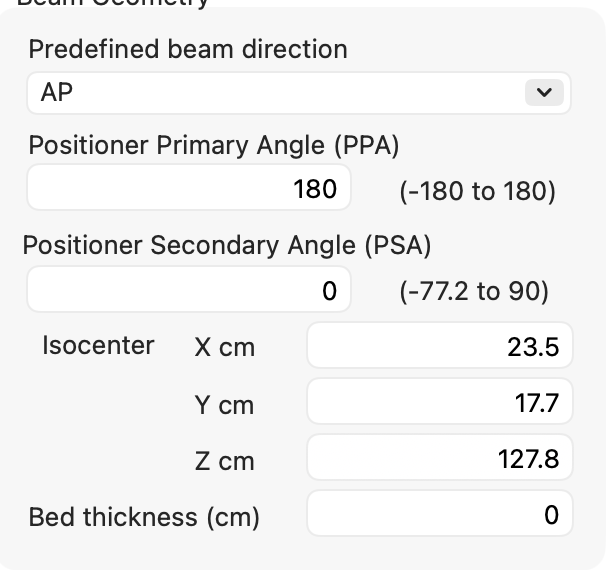
Beam orientation is defined using:
- Practitioner Primary Angle (PPA)
- Practitioner Secondary Angle (PSA)
Angles may be entered numerically, adjusted using cursor up/down keys, or selected using predefined beam directions. PSA supports a range of -90 to 90 degrees. NCIRF automatically adjusts PSA limits based on SID and phantom size.
NCIRF also checks the source position against the selected phantom bounding box. When SID, PPA, or PSA is edited, the program updates the allowed PPA/PSA range using the current SID, PPA/PSA combination, and phantom dimensions. If an entered angle would place the x-ray source inside the phantom box, NCIRF automatically clamps the angle to the nearest allowed value that keeps the source outside the phantom. The current allowed PPA and PSA ranges are displayed next to the angle inputs. SID is limited to a minimum of 30 cm.
Users also define:
- Isocenter X, Y, and Z
- Table thickness
4. Phantom and Beam Geometry Views
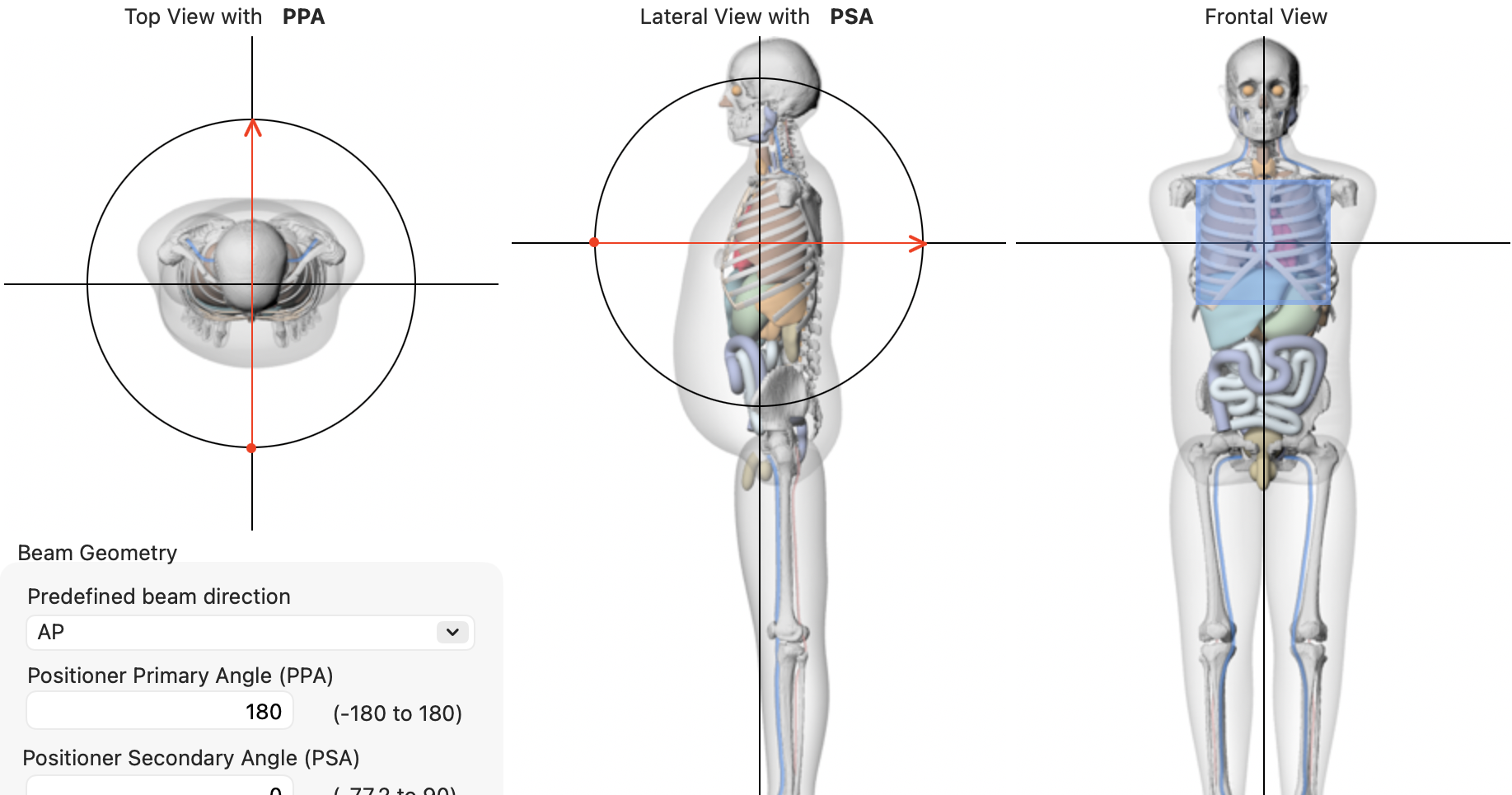
The main GUI displays top, frontal, and lateral views of the selected phantom. These views show:
- Isocenter position
- Beam field box
- Field width and height
- X-ray source direction
- Table position and thickness
The field box can be moved by mouse drag. Users may drag inside the field box or click and drag the field center directly.
The field-box border provides hover feedback before dragging. Moving the pointer inside the box darkens all four edges to indicate that the complete box can be moved. The highlighted border remains visible while the box is dragged.
In the top, frontal, and lateral phantom views, the field box can also be resized by dragging a box edge. The field center remains fixed during resizing: dragging the upper edge changes the lower edge symmetrically, and dragging the left or right edge changes the opposite edge symmetrically. The corresponding Field Width and Field Height input values are updated automatically. Because field width and height are defined on the beam-normal plane toward the source, the displayed resize behavior accounts for the current PPA and PSA projection. When the pointer is near a left or right edge, both vertical edges darken to show that they move symmetrically. When the pointer is near an upper or lower edge, both horizontal edges darken. The paired highlight remains visible during resizing and clears when the pointer leaves the phantom view.
Phantom picture resolution has been improved in NCIRF 4 for clearer visual feedback.
5. Monte Carlo Dose Calculation
Users specify:
- Number of Monte Carlo histories
- Thread count for multithreaded execution
GEANT4 simulations run in the background. NCIRF 4 includes:
- MC calculation progress bar with percent display
- Stop button for dose calculation
- Faster backend calculation and UI update behavior
During the initial GEANT4 setup period, such as phantom and transport
preparation before event progress text is available, the main GUI progress bar
displays Preparing Monte Carlo.... After GEANT4 begins reporting transport
progress, the progress bar switches to percent values such as 10%, 20%, and
so on until the calculation reaches 100%.
Thread count should generally be selected based on available CPU cores and the desired balance between speed and system responsiveness.

6. Dose Output
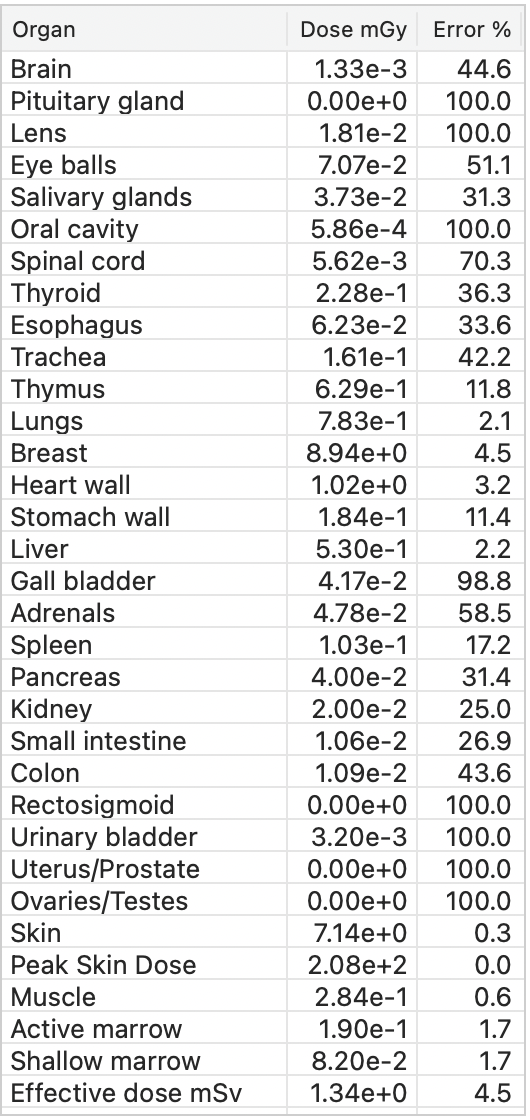
After calculation, NCIRF reports:
- Organ absorbed dose (mGy)
- Monte Carlo statistical error (%)
- Peak skin dose (PSD)
- Effective dose (mSv)
Dose and error values are right-aligned in the main GUI table for easier scanning.
Effective dose is calculated using tissue weighting factors defined in ICRP Publication 103.
7. Batch Manager
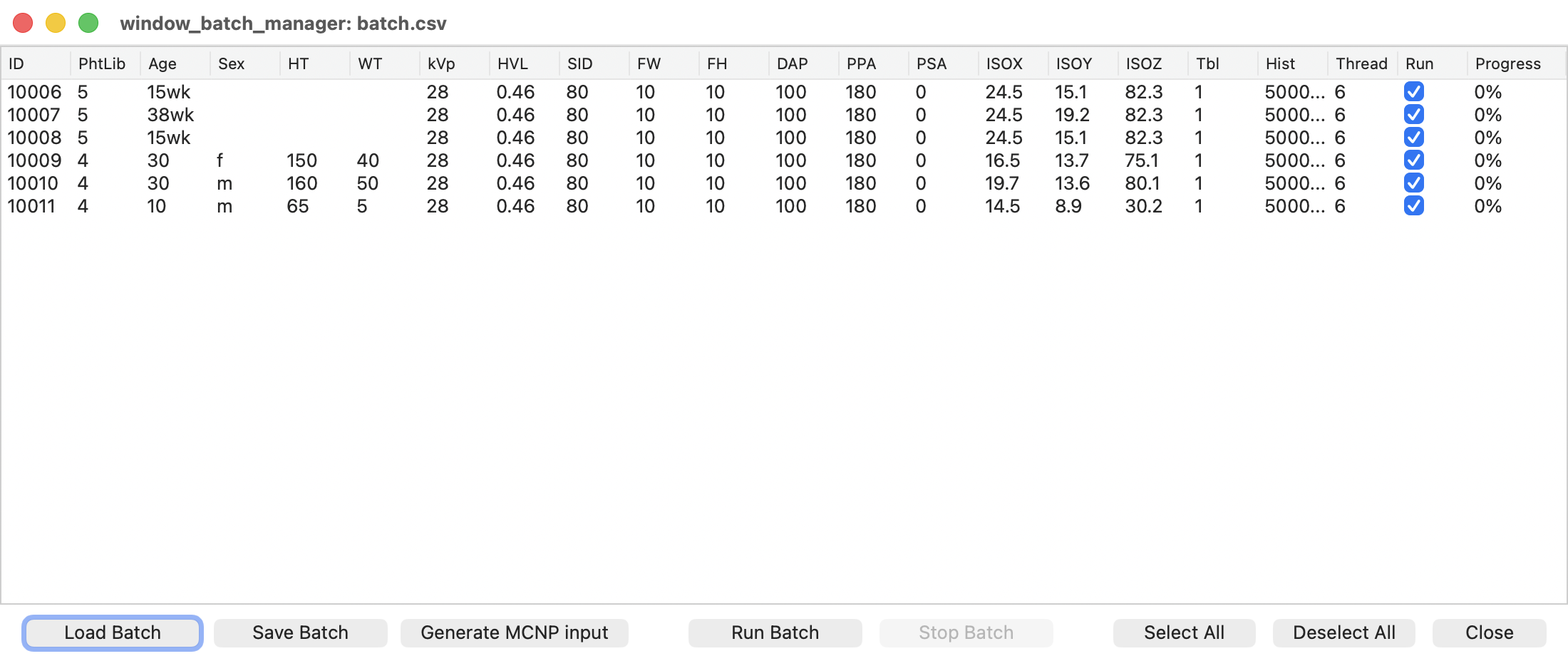
NCIRF 4 uses a single unified Batch Manager for reference, size-dependent, and pregnant phantom calculations.
Batch Manager Columns
Batch Manager uses compact headers:
| Header | Description |
|---|---|
| ID | Patient identification number |
| PhtLib | Phantom Library ID |
| Age | Age in years, or gestational week for fetus such as 8wk |
| Sex | f=female, m=male |
| HT | Height in cm |
| WT | Weight in kg |
| kVp | X-ray energy kVp |
| HVL | Half-value layer |
| SID | Source-to-isocenter distance |
| FW | Field width in cm |
| FH | Field height in cm |
| DAP | Dose-area product in Gy-cm2 |
| PPA | Practitioner primary angle |
| PSA | Practitioner secondary angle |
| ISOX | Isocenter X |
| ISOY | Isocenter Y |
| ISOZ | Isocenter Z |
| Tbl | Table thickness in cm |
| Hist | Monte Carlo particle history |
| Thread | Thread number for hyperthreading |
| Run | Check to run |
| Progress | Batch calculation progress |
Saved Batch CSV files may also contain SpectrumID and SpectrumFile after
Thread. These fields are stored as spectrum metadata rather than displayed
as additional Batch Manager columns. SpectrumID identifies a built-in or
already-loaded custom spectrum. SpectrumFile can identify an absolute or
Batch-file-relative .ncirfspc or legacy NCIRF .spc path.
Hovering over the Batch Manager header displays a more detailed tooltip for each column.
Phantom Library IDs
| PhtLib | Phantom library |
|---|---|
| 1 | Arm raised reference phantom |
| 2 | Arm lowered reference phantom |
| 3 | Arm rotated reference phantom |
| 4 | Size-dependent phantom |
| 5 | Pregnant phantom |
Batch Input Rules
For reference phantoms (PhtLib 1, 2, or 3):
AgeandSexare used.Ageis automatically matched to the nearest supported reference age.HTandWTare ignored and left blank in the Batch Manager.
For size-dependent phantoms (PhtLib 4):
Age,Sex,HT, andWTare used.- Pediatric/adult and female/male phantom group is derived from
AgeandSex. - Pediatric is defined as age less than 20 years.
- Height and weight are automatically matched to the nearest available size-dependent phantom.
For pregnant phantoms (PhtLib 5):
Ageshould use week notation, such as8wk,10wk, or35wk.Sex,HT, andWTare ignored and left blank in the Batch Manager.
Sex should be entered as f or m. CSV load also accepts F, M, and legacy
numeric values 1 and 2.
Editing Batch Rows
Batch Manager cells can be edited directly. When a row value changes, NCIRF normalizes the phantom-related fields and reflects the selected row in the main GUI.
Stored dose and error results are cleared only when an editable input value actually changes. Clicking into a cell or selecting a row without changing the value does not reset the stored result or progress.
Examples:
- Editing
PhtLib,Age, orSexupdates the selected phantom. - Editing
HTorWTfor a size-dependent phantom snaps to the nearest phantom. - Editing reference or pregnant rows clears unused height and weight fields.
Sending Main GUI Settings to Batch Manager
The main GUI can send the current setup to Batch Manager.
If the main GUI does not contain a completed dose calculation result, NCIRF adds
the row as input only and sets Progress to 0%.
If the main GUI contains a completed dose calculation result, NCIRF adds the row
with Progress set to 100% and stores the current dose and error results in
the Batch Manager background result arrays. The stored results are not displayed
as extra visible Batch Manager cells, but they are available when the completed
row is selected and are included when the batch file is saved.
Running Batch Calculations
Use the Run checkbox to select rows for calculation. Select All and
Deselect All buttons are available for the Run checkboxes.
During batch calculation:
- The active row progress is shown in the
Progresscolumn. - The main GUI progress bar displays
Preparing Monte Carlo...while the active batch row is preparing GEANT4 transport. - After GEANT4 transport progress begins, the main GUI progress bar switches to
percent values and the active batch row
Progresscolumn is updated. - Completed rows remain at
100%. - Dose and error results are stored internally.
- When a completed row is selected, its stored dose and error results are shown in the main GUI.
- While the next row is running, the previous completed dose and error values remain visible until the next result is ready.
Saving and Loading Batch CSV Files
Batch input accepts comma- or semicolon-delimited CSV files. Semicolon-delimited CSV is recommended when decimal commas are used. In a comma-delimited file, a value containing a decimal comma must be enclosed in double quotes. Saved Batch CSV output always uses comma delimiters and dot decimals for consistent reuse across regional settings.
Save Batch writes:
- Input parameters
- Stable spectrum ID
- Each referenced custom spectrum as a companion
.ncirfspcfile in the same folder as the Batch CSV; the CSV records the companion filename as a relativeSpectrumFilepath - Completion progress
- Dose result columns
- Error result columns
Built-in spectra do not create companion files. Multiple Batch rows that use
the same custom spectrum reuse the same companion file. Keep the Batch CSV and
all accompanying .ncirfspc files together when sharing, moving, or archiving
a Batch.
Dose columns use the prefix Dose, such as:
- Dose Brain
- Dose Thyroid
- Dose Effective dose mSv
Error columns use the prefix Error, such as:
- Error Brain
- Error Thyroid
- Error Effective dose
Rows that have not completed are saved with 0% progress and blank result
fields. Completed rows are saved with 100% progress and their stored dose and
error result fields.
Load Batch restores input parameters into Batch Manager and immediately
loads, validates, and adds custom spectra referenced from the CSV folder. The
imported spectra are also restored to NCIRF's Application Data library. A
Batch therefore remains usable after NCIRF is removed and reinstalled, as long
as its CSV and companion .ncirfspc files remain together. Missing, corrupt,
or mismatched companion files are reported. Legacy files without spectrum
metadata continue to use nearest kVp/HVL matching. If the CSV contains
completed results, NCIRF loads those results internally and displays them in
the main GUI when the completed row is selected.

MCNP Input Generation
Batch Manager can generate MCNP input files for all supported phantom libraries:
- Reference phantoms
- Size-dependent phantoms
- Pregnant phantoms
This is intended for external computing environments where MCNP input files are run outside the NCIRF GUI.
8. Notes and Limitations
- NCIRF is intended for reference dose reconstruction and comparative analyses.
- It is not intended for real-time clinical decision support.
- Monte Carlo uncertainty depends on the number of particle histories.
- Pregnant phantom calculations use gestational age rather than patient height and weight.
- Internet access is required only to generate a new SpekPy spectrum. Built-in, persisted, and imported custom spectra remain available offline.
- Custom spectra are resampled onto NCIRF's fixed 62-value energy grid; the desktop client does not retain the full raw SpekPyWeb fluence table.
- Batch result values are only available for rows that have completed calculation or have been loaded from a saved Batch CSV containing completed results.
Scientific Software Attribution
SpekPy
Custom spectrum generation is powered by SpekPy 2.5.4, distributed under the MIT License. Source distributions and authorship information are available from the SpekPy project page on PyPI. NCIRF accesses SpekPy through the NCI Dose Tools hosted service and does not bundle the Python/SpekPy environment in the desktop application.
Geant4
NCIRF uses Geant4 for Monte Carlo particle transport and energy-deposition calculations in computational human phantoms. Geant4 is developed by the Geant4 Collaboration and distributed under the Geant4 Software License. Source code, documentation, and collaboration information are available from the official Geant4 website.
This product includes software developed by Members of the Geant4 Collaboration (http://cern.ch/geant4).